VOD missions
Video-on-demand (VOD) missions contain recorded video and metadata. You can create them by uploading files, using StServerUploader, recording a live mission, importing a mission, or using the REST API.
Mission table
Open Admin to manage recorded missions. Expand a mission row to see its sensors. Hover over a mission thumbnail to preview its keyframe.
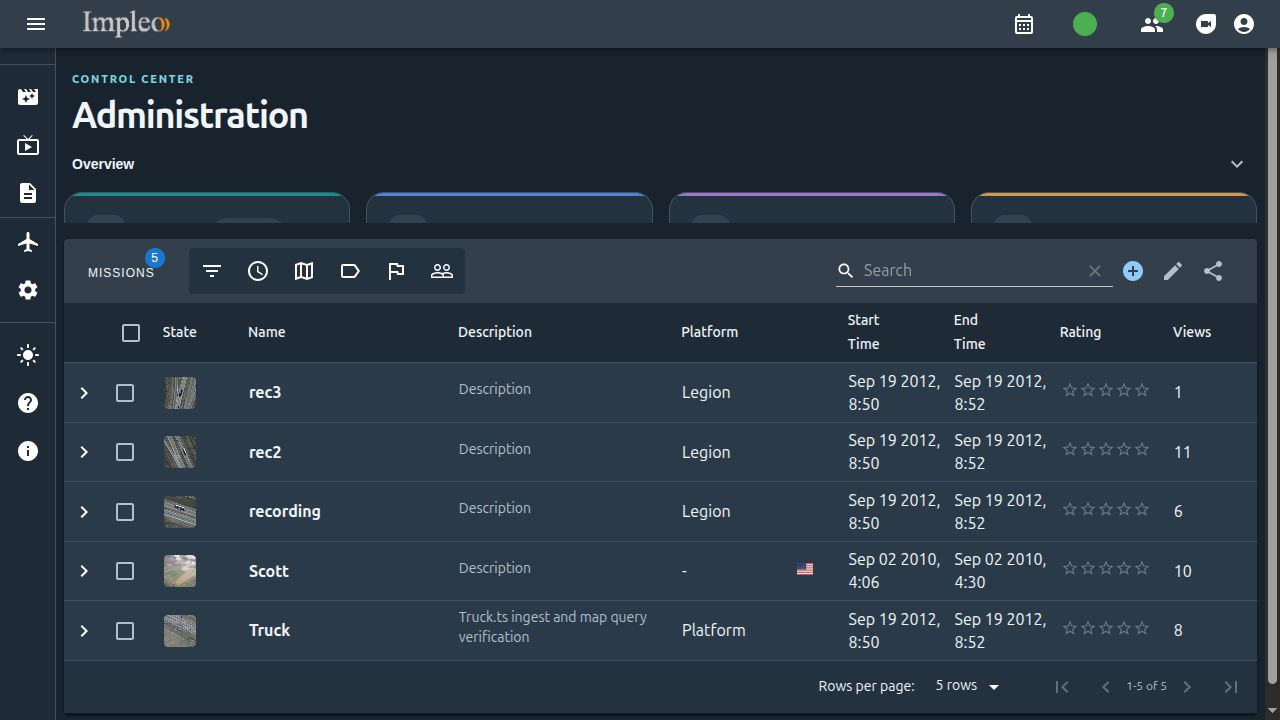
Creating a mission manually
- Click Add Mission in the mission table.
-
Enter a unique mission name and description. Assign user groups and a security classification, then click Next.
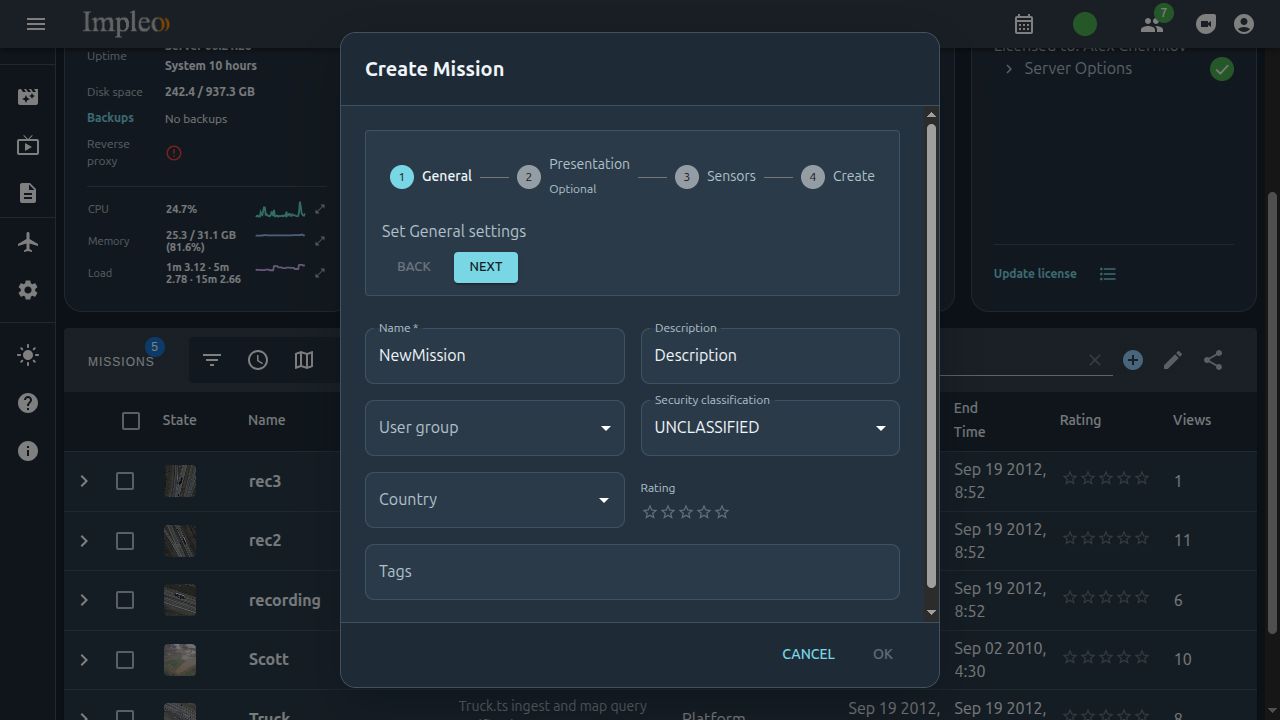
-
Enter platform information, choose the display color, and set the sort order. Click Next.
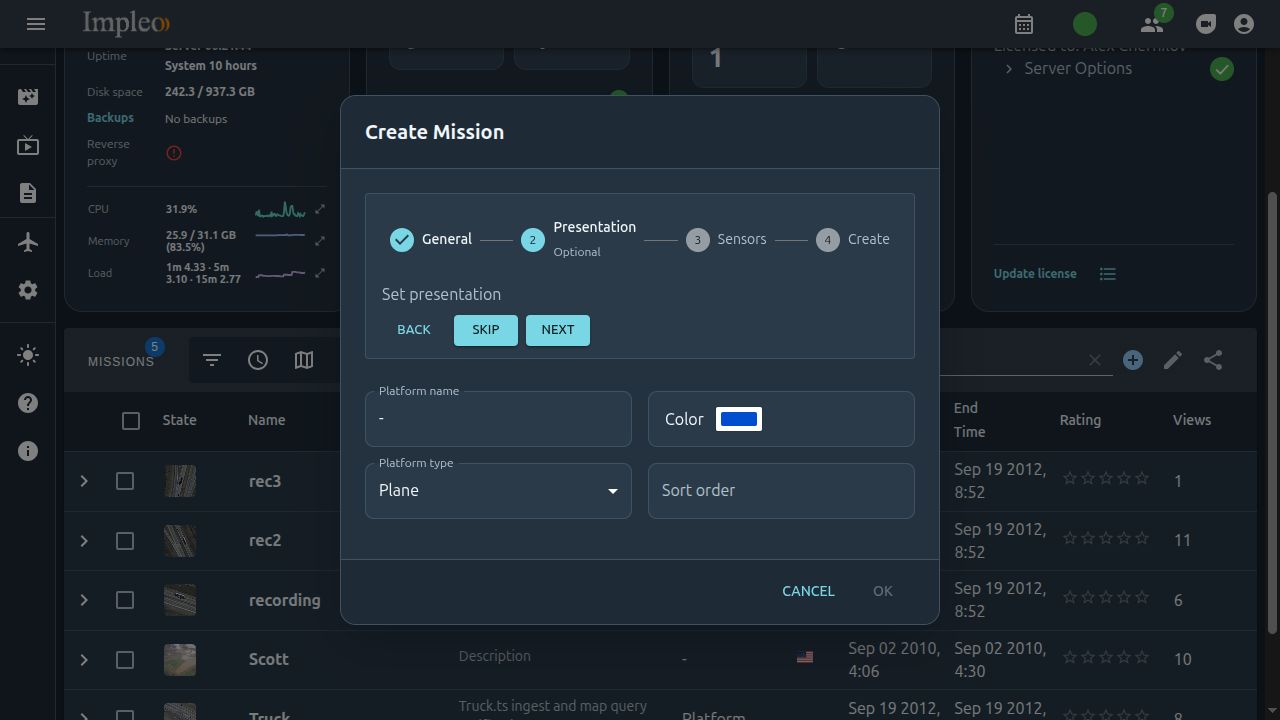
-
Add one or more video sensors and enter their names and descriptions. Expand each sensor row, then drag a video file into the upload area or click to select one.
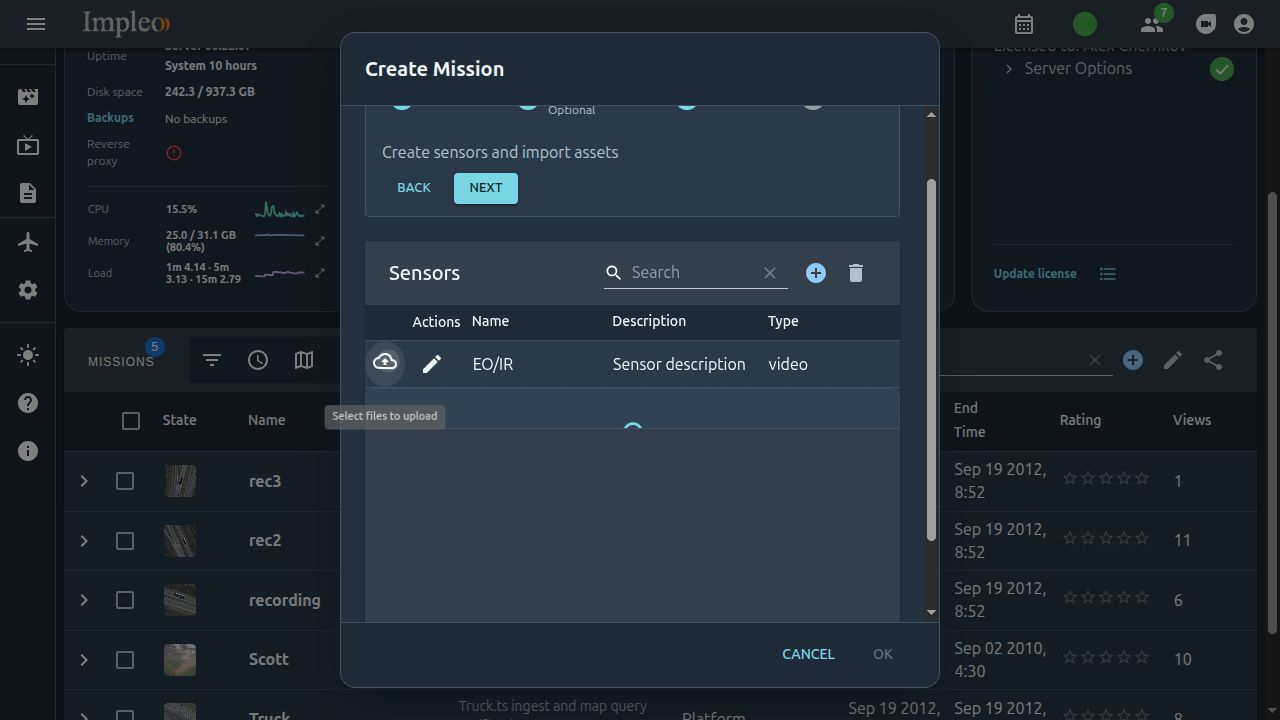
Supported inputs include STANAG MPEG-TS files (
.ts) and ZIP archives containing HLS segments and a valid.m3u8playlist. -
Click Ok to start uploading and processing.
The server creates the mission, uploads its assets, and ingests the metadata. It calculates geographic coverage and tracks when the required metadata is available. The mission becomes available for playback after processing finishes.
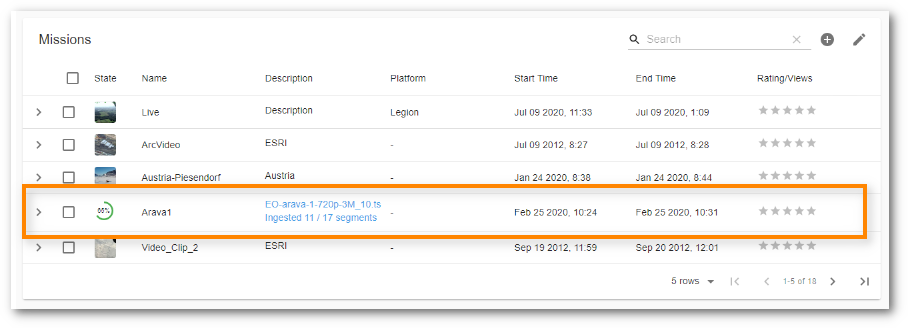
See Sensor configuration for advanced HLS processing options.
Uploading multiple missions
Use StServerUploader to upload multiple missions automatically. It can also ingest files you have already copied to the server.