Video snapshots
Capture still images from live or recorded video and save them as documents for later review.
Selecting a source
In a multi-sensor view, select the player you want to capture. Live snapshots do not require recording. A snapshot from an unrecorded live feed is associated with its platform; when a mission is available, the snapshot can also be associated with the mission and sensor. Recorded playback snapshots retain their mission context.
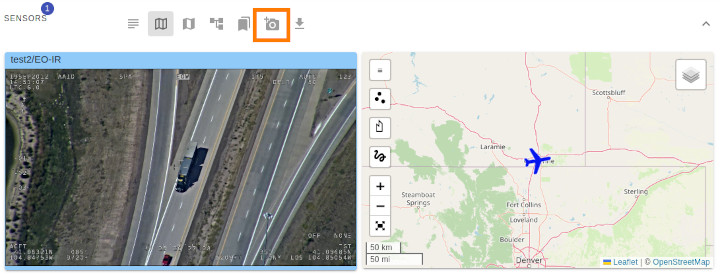
Taking a snapshot
- Click Snapshot to capture the current video frame.
- Enter a Title, an optional Description, and Tags.
- Assign user groups and, if your role permits it, the Restricted flag.
- Click Ok to save the snapshot in the document repository.
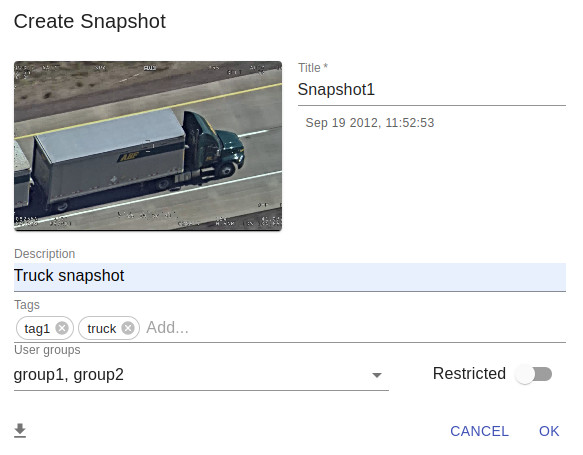
Titles must contain 1–16 letters, numbers, underscores, or hyphens. Descriptions can contain up to 127 characters. Enter a tag and press Enter to add it.
To download the image immediately without saving a repository document, click Download Snapshot.
Timestamps and metadata
If the video contains a valid KLV timestamp, the dialog displays the time of the captured frame. This can differ from the document's creation time, especially during recorded playback.
Saved snapshots are Image documents with a title, description, tags, access groups, source context, filename, and thumbnail. Mission and sensor associations depend on the selected source.
Storage and access
Snapshots use the same storage directory and access rules as other documents. Administrators can manage all snapshots; other users' access depends on their groups and role. The Restricted flag limits editing and deletion rather than replacing group access rules.
Saved JPEG filenames include a timestamp, username, and title, for example:
2025-03-27-14:05:09-jdoe_Target_Acquired.jpg
Use meaningful titles and tags to make snapshots easier to find.