Document repository
The document repository stores reports, notes, images, video clips, and other files. Documents can be linked to a platform, mission, or sensor, or stored independently.
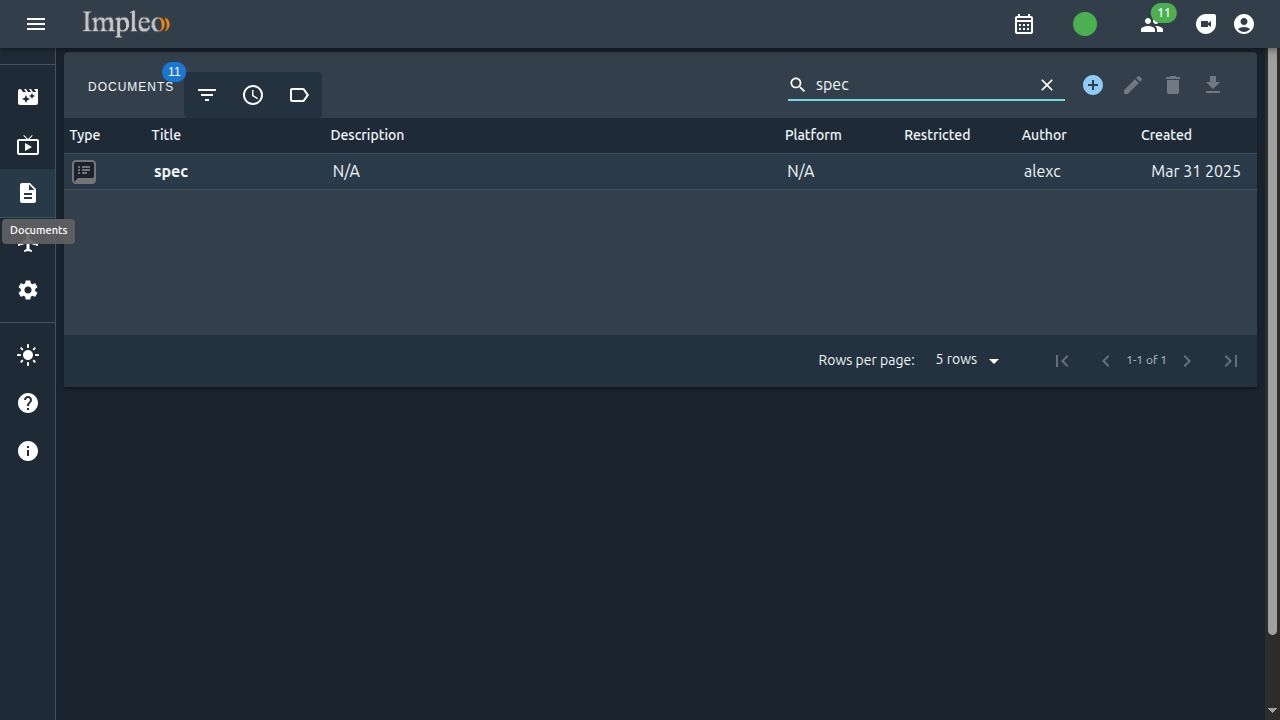
Open Docs in the sidebar. Search by text, time, tags, or table column values. Hover over an image or video icon to preview its thumbnail.
Uploading documents
- Click Add Document above the table.
- Select or drop a file into the dialog.
- Enter a title and description, then choose a category. Image and video categories are selected automatically.
- Assign user groups and tags, and set the security classification.
- Click Ok to upload.
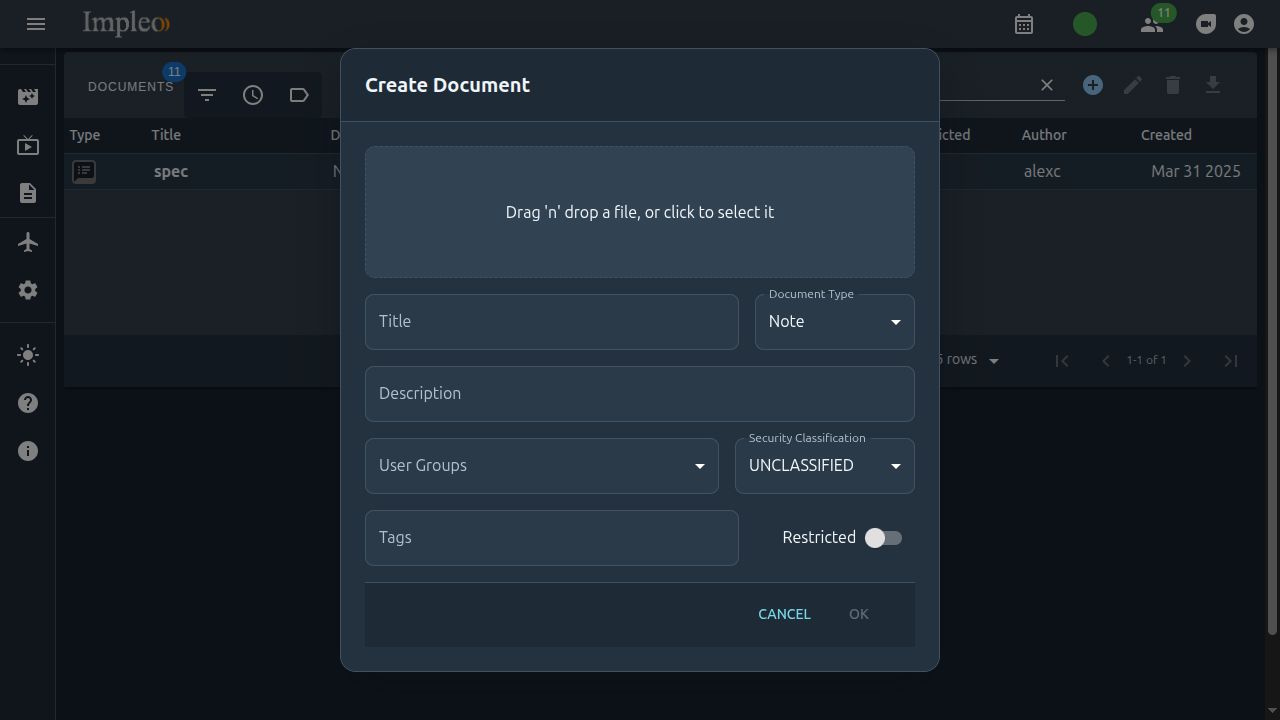
Categories include reports, notes, images, documents, videos, logs, and miscellaneous files. Supported uploads include text, CSV, JSON, PNG, JPEG, PDF, ZIP, Excel and Word documents, MPEG-TS and MP4 video, and binary files. Upload limits also depend on the server and reverse proxy configuration.
New tags are added to the available tag list for reuse. The file is stored in the configured documents directory; its descriptive information is stored in the database. In Docker deployments, HOST_DOCUMENTS_DIR specifies the host directory mounted for document storage.
Access and permissions
Administrators and super administrators can view all documents. Other users see documents assigned to groups they belong to or administer. An unrestricted flag does not make a document visible outside those groups.
Restricted controls modification rather than visibility. Administrators, the author, and a group administrator responsible for one of the document's groups can modify a restricted document. The interface limits changes to the Restricted flag to administrative roles.
Security classification
Classification labels follow the MISB 0102 values: UNCLASSIFIED, RESTRICTED, CONFIDENTIAL, SECRET, and TOP SECRET. The label describes the content; user groups and role permissions control access.
Editing, downloading, and deleting
Select a document and use Edit Document to change its descriptive information. Use Download Document to retrieve its file.
Use the table's Delete action to remove the file and database record together. Deleting a file directly from the storage directory leaves its database record behind.