Configuration
Platforms and sensors
Administrators can use Admin > Platforms > Edit configuration to edit the platform and sensor definitions. See Admin for save and reload behavior.
To work with live video streams, you must first configure them. In general, the server works with a logical entity called a Platform, such as a plane, drone, or car, that can carry multiple Sensors (video cameras) or other data sources. The operator uses the platforms.yml file to define the existing platforms and network topology.
When you record the streams, they become a mission, which includes live feeds, recordings, and descriptive metadata. Until recording is active, it is simply a video feed, and the mission may or may not have started yet.
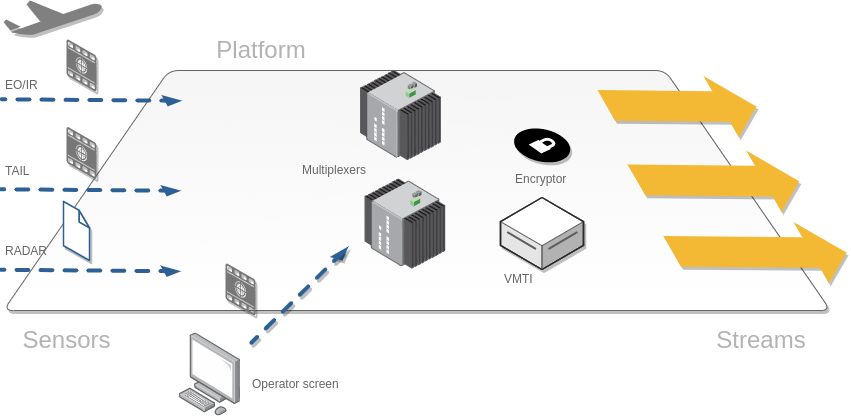
STServer supports STANAG streams over UDP. Multicast lets the recorder and preview services receive the same source independently. If a preview service requires multicast and the source provides unicast, use a recaster to distribute it.
Basic platform configuration
The following example shows a configuration file that defines two UAV platforms, UAV_1 and UAV_2.
The first UAV has five sensors and data feeds:
- EO/IR sensor with the stream coming from udp://227.1.1.1:30120
- Tail camera sensor with the stream coming from udp://227.1.1.2:30122
- Operator screen capture sensor with the stream coming from udp://227.1.1.3:30123
- AIS data feed read from
file://./aisdata/ais_data.nm4 - Radar capture sensor with the stream coming from udp://227.1.1.4:30124
Note that the Radar sensor has the active parameter set to
false(active: false), so the sensor is not monitored. Set it totrueto enable monitoring.
The second UAV has only one sensor:
- EO/IR sensor with the stream coming from udp://228.1.1.1:1234
If you have only one UAV (platform) to monitor, there should be only one platform in the list.
platforms:
# First platform
  - name: UAV_1
    active: true
    description: First platform
    type: Plane
    sensors:
      - name: EO/IR
        description: EO/IR sensor
        active: true
        type: video
        url: udp://227.1.1.1:30120

      - name: Tail
        description: Tail camera
        active: true
        type: video
        url: udp://227.1.1.2:30122

      - name: Operator
        description: Operator screen
        active: true
        type: video
        url: udp://227.1.1.3:30123

      - name: AIS
        description: AIS feed
        active: true
        type: ais
        url: file://./aisdata/ais_data.nm4

      - name: Radar
        description: Radar
        active: false
        type: video
        url: udp://227.1.1.4:30124

# Second platform
  - name: UAV_2
    active: true
    description: Second platform
    type: Plane
    sensors:
      - name: EO/IR
        active: true
        type: video
        url: udp://228.1.1.1:1234
Note: If you need to select a specific network interface, add
?localaddr=to theurl:
udp://227.1.1.1:30120?localaddr=192.168.1.28
Allowed platform types:
- Plane
- Helicopter
- Quadcopter
- Camera
- ROV
- Diver
Configuring live video
The live video preview is provided by different services:
- Live preview:
stsupervisor - Live (WebRTC):
stanag2webrtc - DVR:
stserverorstvideo-server
Use HTTPS for deployed browser clients. HTTP on
localhostis useful for local testing; a trusted LAN does not automatically make an HTTP origin a secure browser context. WebRTC media connectivity also depends on the configured ICE addresses and network ports.
stanag2webrtc service in docker-compose.yml
  stanag2webrtc:
    image: impleo/stanag2webrtc:3.0.1
    container_name: stanag2webrtc
    restart: always
    network_mode: host
    volumes:
      - ./data/:/app/data/
    environment:
      ADDR: 0.0.0.0:8081
      WEBRTC_SERVICE: "stanag2webrtcwhep"
    #  WEBRTC_LOOPBACK_ICE_CANDIDATE: true  # Use loopback ICE candidate (if local access is required). If true, the server will use a loopback ICE candidate
    #  WEBRTC_FULL_ICE: true  # If true, the server will use full ICE (not ICE-Lite) for WebRTC connections
      KLV_SAMPLING: 300
More on stanag2webrtc service configuration
You can override the default parameters for each channel by adding a live section to the sensor configuration. For example, if you have a video stream that can be played directly in the browser using the H.264 codec, it is recommended to enable video pass-through by setting the videoPassthrough parameter to true. This preserves the original video quality and minimizes CPU usage.
# Platforms
platforms:
# First platform
  - name: UAV_1
    active: true
    description: First platform
    type: Plane
    sensors:
        - name: EO
          description: EO/IR sensor
          active: true
          type: video
          url: udp://227.1.1.1:30120
          live:
            videoPassthrough: true
Alternatively, if you want to set a specific video bitrate, resolution, and codec, you can use the videoResolution, videoBitrate, and videoCodec parameters.
# Platforms
platforms:
# First platform
  - name: UAV_1
    active: true
    description: First platform
    type: Plane
    sensors:
      - name: EO
        description: EO/IR sensor
        active: true
        type: video
        url: udp://227.1.1.1:30120
        live:
          streams:
            - id:      main    # layer name (used as Simulcast-Layer)
              codec:   vp8     # h264 / h265 / vp8 / vp9 /
              resolution:
                width: 1280
                height: 720
              framerate: 30
              bitrate: 2000
Logging
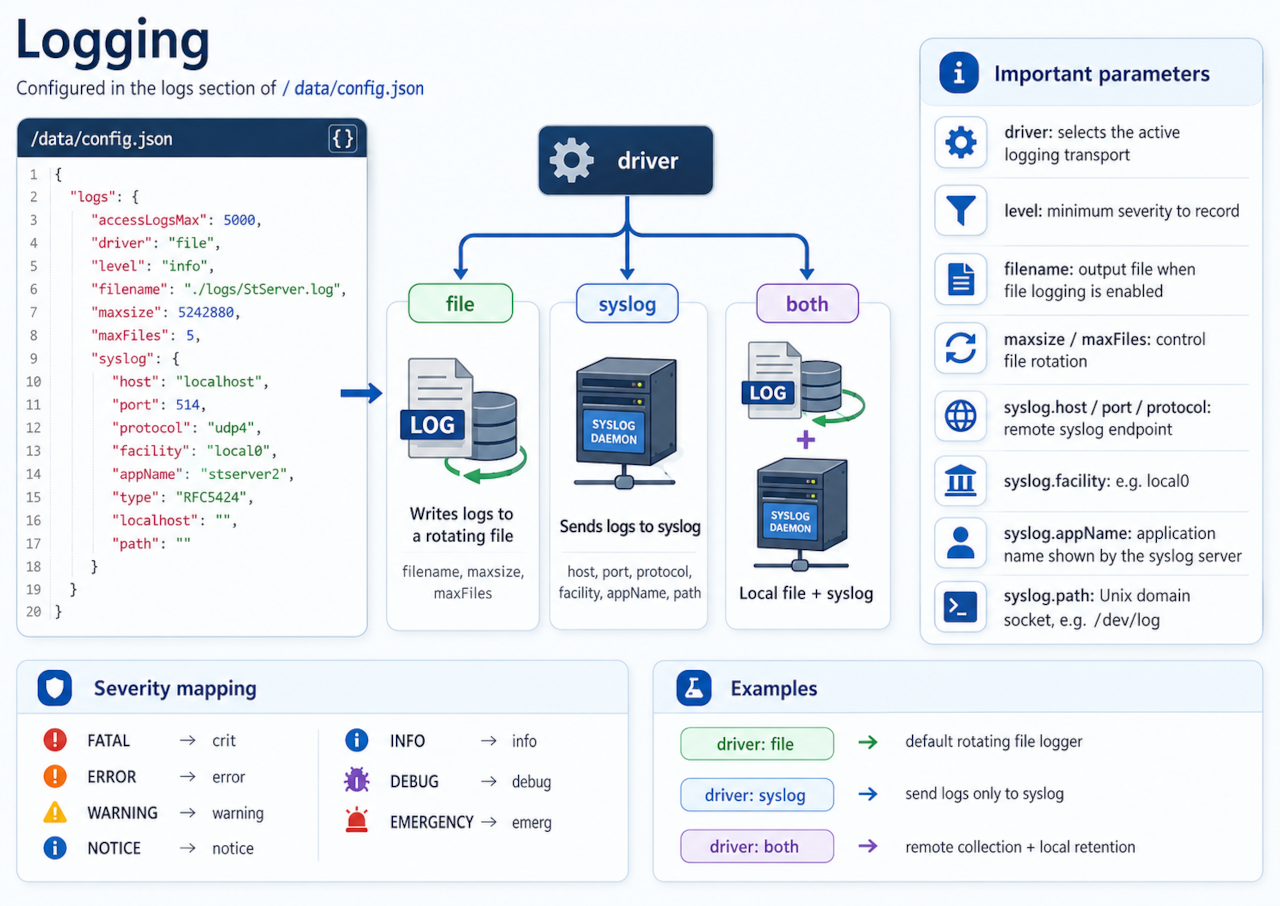
Logging is configured in the logs section of /data/config.json.
"logs": {
  "accessLogsMax": 5000,
  "driver": "file",
  "level": "info",
  "filename": "./logs/StServer.log",
  "maxsize": 5242880,
  "maxFiles": 5,
  "syslog": {
    "host": "localhost",
    "port": 514,
    "protocol": "udp4",
    "facility": "local0",
    "appName": "stserver2",
    "type": "RFC5424",
    "localhost": "",
    "path": ""
  }
}
Supported logging drivers:
filewrites logs to the rotating file configured byfilename,maxsize, andmaxFilessyslogsends logs to a syslog daemon or log collectorbothwrites to the local file and sends the same messages to syslog
Important parameters:
driverselects the active logging transportleveldefines the minimum log severity to recordfilenameis the output file used when file logging is enabledmaxsizeandmaxFilescontrol file rotationsyslog.host,syslog.port, andsyslog.protocoldefine the remote syslog endpointsyslog.facilitysets the syslog facility, for examplelocal0syslog.appNamecontrols the application name shown by the syslog serversyslog.pathcan be used for Unix domain socket logging such as/dev/log
Supported severity categories:
FATALmaps to syslogcritERRORmaps to syslogerrorWARNINGmaps to syslogwarningNOTICEmaps to syslognoticeINFOmaps to sysloginfoDEBUGmaps to syslogdebugEMERGENCYmaps to syslogemerg
Examples:
- Keep the default rotating file logger with
"driver": "file" - Send logs only to syslog with
"driver": "syslog" - Use
"driver": "both"when you want remote collection and local retention at the same time
For a quick syslog test, point syslog.host and syslog.port to a local listener such as nc -klu 5514, set driver to syslog, and then start the server or emit a few log messages through the application logger.