File Playback
🎬 Select file
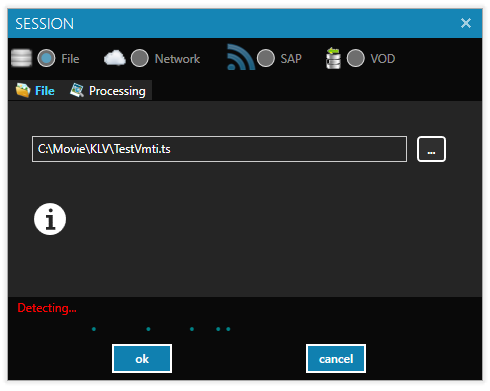
You can select a file for playback by clicking New File Session on the StPlayer toolbar and choosing your media.
Alternatively, simply drag and drop files directly into the player window.
- Supported media formats: TS and MPG
- You can also drag and drop multiple GeoJSON files (
.jsonextension), which will be imported as annotations.
For more information on annotations, see the Annotations section.
🔗 TS and M3U8 Extension Association
StPlayer can be launched with a file name argument (.ts or .m3u8), enabling support for:
- "Open with..." functionality in Windows Explorer
- File extension association for .ts and .m3u8 types
See more in the HLS Playback section.
📁 File Selection
Select a STANAG file by either: - Clicking New File Session - Editing the file path on the Config page
ℹ️ File Info Detection
When a new file is selected, detection starts automatically.
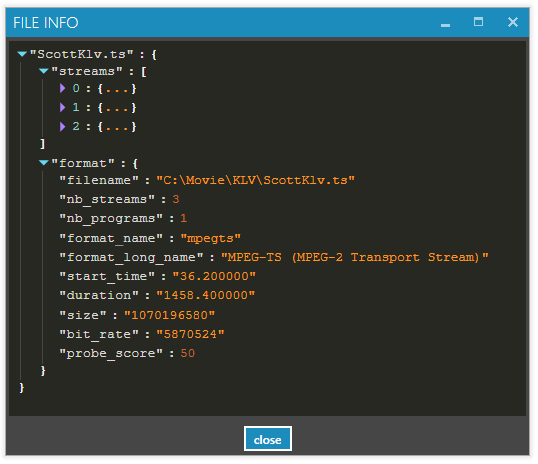
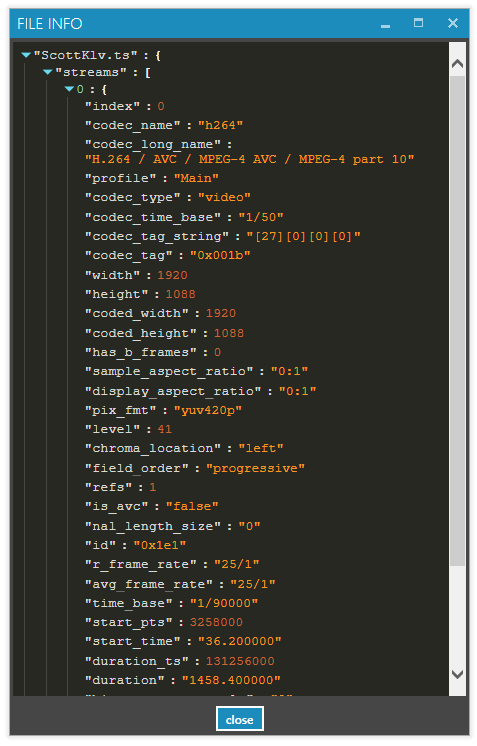
Click the Info button to view detailed information about:
-
The file container
-
The elementary video/audio streams
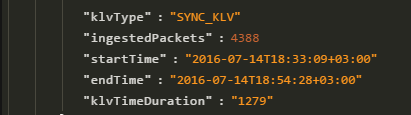
Note: Some metadata is only available after ingest completes. For example: - KLV type (SYNC/ASYNC) - Start/end times per KLV PID - Duration calculated from KLV packet timestamps
🕒 GoTo KLV Time
StPlayer ingests all available KLV metadata, even across multiple PID streams.
When using features like Go To Time, be aware:
- If discrepancies exist between metadata streams, the currently active PID will be used.

⏮️⏭️ Step Forward / Backward
While in Pause mode, you can step forward or backward through the file with frame-accurate synchronization to the KLV metadata.

⏩⏪ Fast Forward / Reverse Playback
StPlayer supports playback rate control, allowing you to fast forward or reverse playback smoothly.
