Playback Control Panel - Button Guide
This section describes the main controls available in the StPlayer playback interface:
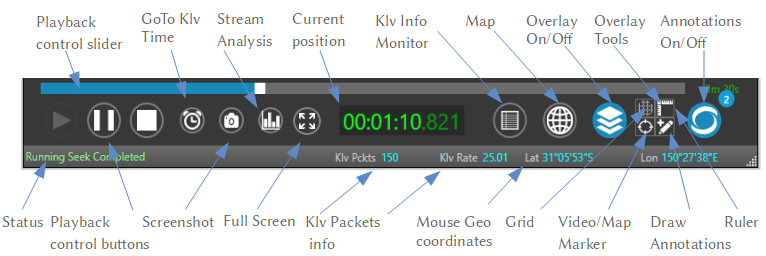
Status Display
- Status Indicator
Shows the current status of the player (e.g., "Running", "Paused", "Stopped").
Playback Controls
-
Playback Control Slider
Allows seeking within the video. Drag the slider to jump to a specific point in the stream or file. -
Playback Control Buttons
- ▶️ Play: Start playback.
- ⏸️ Pause: Pause playback.
- ⏹️ Stop: Stop playback.
Capture & Display
-
📸 Screenshot
Capture the current frame as an image. -
⛶ Full Screen
Toggle full screen mode on or off.
Navigation & Analysis
-
🕒 Go To KLV Time
Jump to a specific timestamp based on KLV metadata. -
📊 Stream Analysis
Open stream analysis charts showing timestamps, bitrate, discontinuities, and more.
Playback Information
-
⏱️ Current Position
Displays the current playback time (e.g.,00:01:10.821). -
🧾 KLV Info Monitor
Shows KLV metadata packets and rates. -
KLV Pkts: Number of KLV packets received. KLV Rate: Rate of incoming metadata (e.g., packets/sec).
Geospatial Tools
-
🗺️ Map
Toggle map view with platform footprint and location overlay. -
🌐 Overlay On/Off
Enable or disable the video overlay features. -
🧩 Overlay Tools
Access GPU-accelerated overlay tools like: - Perspective grid
- Distance ruler
- Video-to-Geo mapping
-
Annotations
-
📍 Annotations On/Off
Toggle all annotation layers on or off. -
📌 Video/Map Marker
Drop a marker at the current video frame location. -
✏️ Draw Annotations
Manually draw annotations on the video or map. -
📏 Ruler Tool
Measure distances on the screen using on-video ruler overlays. -
🧭 Mouse Geo Coordinates
Displays real-time geographic coordinates of the mouse cursor (Latitude / Longitude).
DVR Control Panel - Button Guide
The DVR interface adds controls for time-shifted playback, recording, and precision navigation.
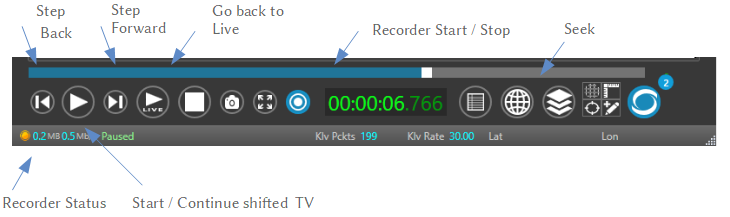
Navigation & Playback
-
⏪ Step Back
Skip one frame backward. Useful for frame-accurate inspection. -
⏩ Step Forward
Skip one frame forward to analyze fine video changes. -
🔴 Go Back to Live
Jump to the current live stream position if you're viewing delayed content. -
⏯️ Start / Continue Shifted TV
Resume playback of time-shifted (buffered) video from the current location.
Recording Controls
-
⏺️ Recorder Start / Stop
Start or stop recording the current stream. Saves video to disk in TS or HLS format. -
💾 Recorder Status
Displays: - Current recording state (e.g., Paused, Recording)
- Recorded data size (e.g.,
0.2 MB / 0.5 MB)
Seek & Time Display
-
🎚️ Seek Bar
Drag to jump to a specific point in the recorded or time-shifted content. -
⏱️ Current Position
Shows the current playback time with millisecond precision (e.g.,00:00:06.766).