📡 Stream Playback
StPlayer provides low-latency UDP stream playback, supporting both unicast and multicast FMV streams.
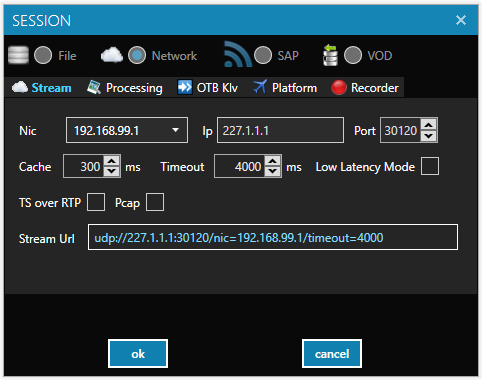
To start, select New Stream Session from the menu to open the stream configuration page.
⚙️ Configuration Parameters
-
NIC, IP, and Port
Stream access parameters (network interface, IP address, and port). -
Cache (Dejitter Buffer)
Set this as low as possible for minimal latency.
If the stream has significant jitter, increase this value for smoother playback. -
Timeout
The player will report an error if no stream is received for the specified duration. -
Low Latency Mode
When enabled, the player is optimized for minimal latency.
Note: The cache value is ignored and playback might not be smooth. Use with caution. -
TS over RTP
Enable this option if your stream is TS over RTP. -
URL
Information field showing the final stream URL passed to the player.
🎯 Select the UDP IP and Port of your stream and press play to begin playback.
⚠️ Note:
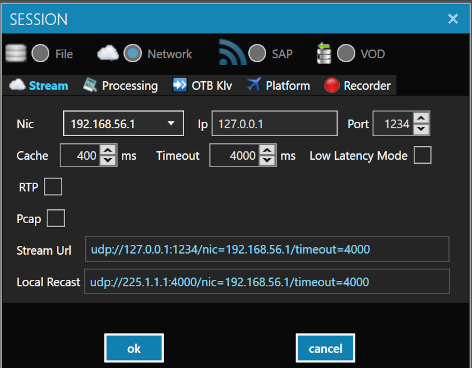
If your source is a unicast stream, StPlayer automatically recasts it to multicast using the first available port (withTTL=1).
This allows simultaneous recording from the same socket.
🔁 RTP Stream Playback
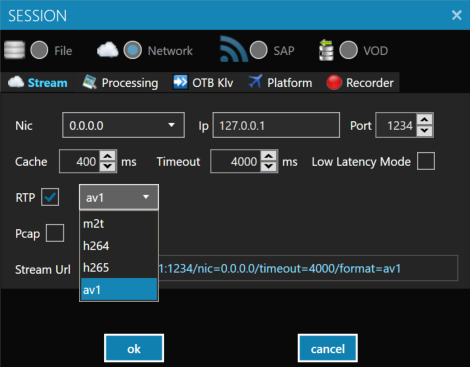
When receiving RTP streams, the payload format must be specified.
Supported formats include:
m2t(MPEG-TS over RTP)h264h265av1
⚠️ Note: DVR and recording functionality are not available for RTP streams.
🎥 RTSP Stream Playback
To play RTSP streams, select New RTSP Session from the File menu.
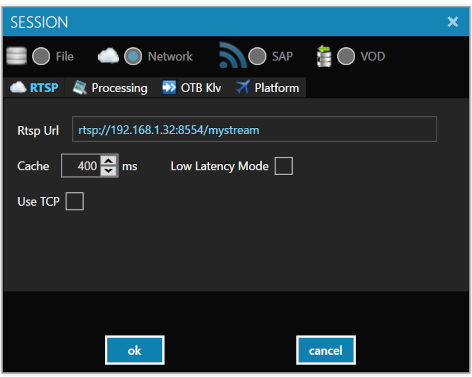
⚠️ Note: DVR and recording are not available for RTSP streams.
🧪 PCAP Playback
You can play stream data directly from .pcap files.
- Select PCAP in the session configuration menu,
or simply drag and drop a.pcapfile into the player.
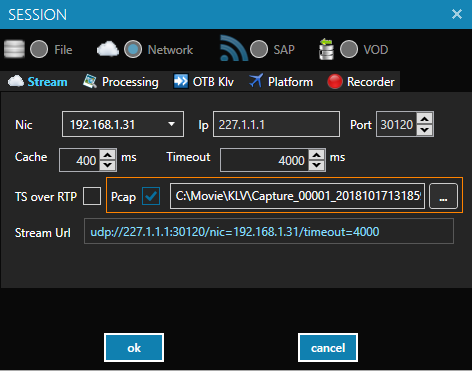
⚠️ Note: - This is primarily a debugging feature and may not work for all files.
- Unicast-to-multicast recasting is disabled during PCAP playback.
- Recording is also disabled.
- If your file is in.pcapngformat, convert it to.pcapfirst.
🔄 Out-of-Band KLV Support
You can receive out-of-band KLV data in RAW KLV format.
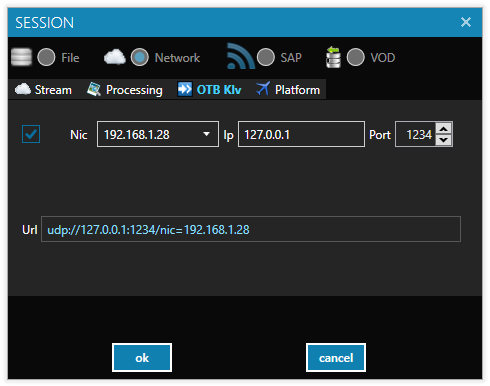
To configure it, provide the appropriate NIC, IP, and port as shown below: