🕓 STANAG DVR Mode
DVR mode in StPlayer enables live low-latency monitoring, delayed playback (time-shifting), recording, and on-demand investigation.
StPlayer uses both:
- Internally or externally recorded segments (HLS Live)
- A local in-memory buffer (sliding window)
This setup allows seamless switching between live and recorded content.
Users can:
- ⏸️ Pause the live stream
- ⏮️⏭️ Step forward/backward with frame accuracy
- 🎚️ Seek to specific timestamps
- ▶️ Continue playback from the paused (shifted) position
- 🔴 Return to the live edge at any time
⚠️ Note: DVR functionality requires the Recorder option to be enabled.
📘 DVR Operation Scenarios
DVR supports 3 operating scenarios:
🔁 1. Local Buffer Playback
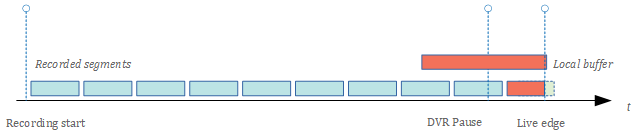
When DVR mode is enabled, the player continuously records video into a local in-memory buffer.
If the user pauses the stream, trick modes (step forward/backward) are performed from this buffer.
🧮 2. Fallback to File Segments
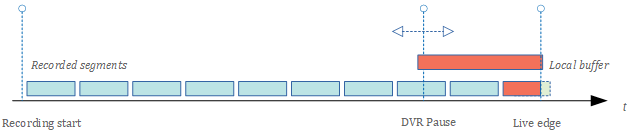
If too much time has passed since pause, the in-memory buffer is overwritten.
The player will then switch to externally recorded HLS segments to fulfill playback requests.
📂 3. Direct File Access
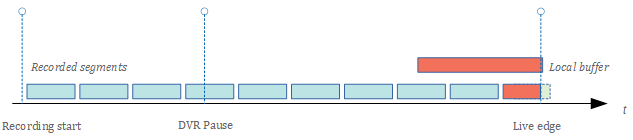
If the requested content is too old to be in the memory buffer, the player uses the recorded video files directly.
⚙️ DVR Configuration
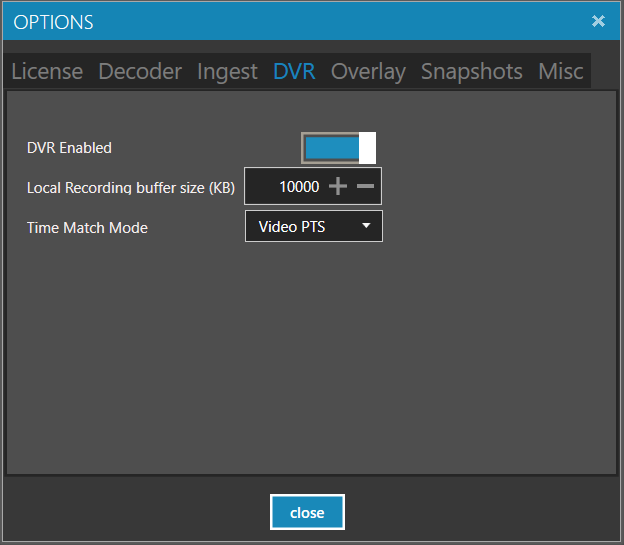
Make sure DVR mode is enabled in your configuration.
🧠 Local Recording (Memory Buffer)
-
Local Recording Buffer Size
Defines the in-memory buffer size (in kilobytes). -
Time Match Mode
Choose how to sync between live and recorded sources: PTS— matches based on Presentation TimestampsKLV— matches based on metadata timestamps
If your stream preserves original timestamps, use PTS.
If timestamps are modified and KLV data exists, use KLV match.
Without valid timestamps or KLV, synchronization isn't possible.
💾 File Recording Configuration
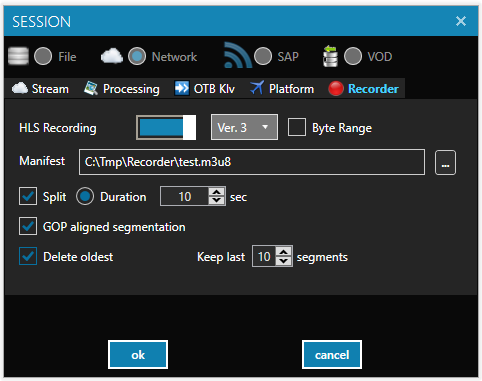
Set up HLS recording with the path to the manifest file.
- You can define a sliding window to control recording size:
- Enable Delete Oldest
- Set a max segment count
- If Delete Oldest is unchecked, all segments will be retained.
ℹ️ You may also use an external recorder, as long as it preserves original timestamps.
▶️ Using DVR
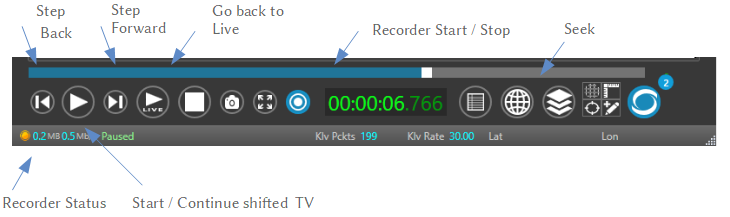
- Start normal stream playback
- Enable recording
- Pause the stream at any time to:
- Step forward/backward
- Seek within buffer or files
- Continue from the paused point
- Return to live edge via GoToLive button
🕑 PTS Wraparound Handling
MPEG format uses a 33-bit counter for PTS timestamps.
This wraps around after about 26.5 hours (2^33 / 90000 Hz).
StPlayer handles natural wraparounds correctly.
However, if the stream contains multiple discontinuities or timeline resets, timestamp-based seeking may fail.