📸 Snapshots
💾 Saving Screenshots and Metadata
You can save a current video frame screenshot along with the accompanying metadata (if available) by pressing the Take Screenshot button.

There are two available modes:
- 🧑💻 Manual file name selection
- 🤖 Silent mode (predefined location and configuration)
🧑💻 Manual File Selection
In this mode, the user is prompted to select a file name and a location every time the Take Screenshot button is clicked.
🤖 Silent Mode
In this mode, the snapshot is saved silently, according to the predefined Snapshot Configuration.
The file name is composed of: - the current URL (file name or IP:Port) - the current position (in milliseconds)
⚙️ Snapshot Configuration
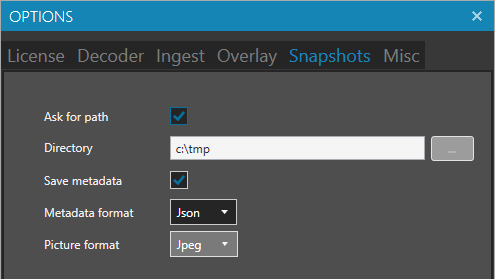
🔹 Ask for path
If checked, you will be prompted to choose a location for the screenshot every time you click the Take Screenshot button.
If unchecked, the screenshot will be saved silently.
📁 Directory
Used in silent mode to determine where the screenshot will be saved.
🧾 Save metadata
Save metadata along with the frame picture.
🧬 Metadata format options:
Json– MISB 0601 with nested sub-standards (0102, 0903, 1204, etc.). The number indicates the standard Tag.Json Detailed– Includes detailed info about tags and values.GeoJSONKML (KMZ)
🖼️ Picture format options:
BitmapJPEG