DVR Mode
DVR mode can be used for:
- Live low-latency feed monitoring
- Delayed playback (time-shifting)
- Recording
- On-demand investigation
The SDK integrates externally recorded video segments (e.g., HLS Live) with a local in-memory buffer (sliding window), allowing seamless transitions between the live stream and recorded content.
With DVR mode enabled, the user can:
- Pause the live stream
- Investigate video frames and telemetry using frame-accurate Step Forward / Step Backward
- Perform Seek operations
- Resume playback from the paused position (time-shifted playback)
- Jump back to the live edge at any time
Note: The STANAG Player SDK does not include built-in long-term recording functionality, aside from a short in-memory buffer.
For persistent recording, use an external HLS recorder that preserves original timestamps, such as the StanagStream Recorder SDK or StanagOnDemand Server.
DVR Operation Scenarios
DVR mode supports three key scenarios:
1. In-Memory Buffer Playback
When DVR mode is enabled during player instance creation, the player continuously records video to a local in-memory buffer.
If the user pauses the stream, trick mode operations such as Step Forward, Step Backward, or Seek are handled using this local buffer.
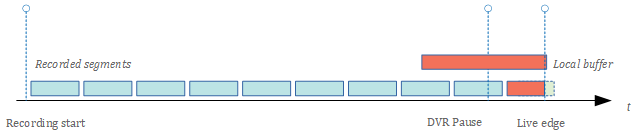
2. Hybrid Buffer + HLS Playback
Once the user has been paused longer than the buffer's duration, the in-memory buffer is overwritten with new data.
At this point, the player will attempt to fetch the required segments from the externally recorded HLS content.
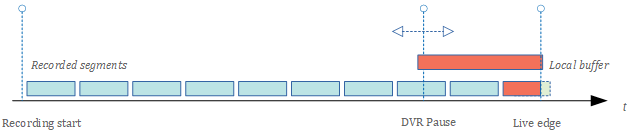
3. Full External Playback
If the user seeks content that is no longer in the buffer (i.e., from a much earlier point), the player will directly access externally recorded segments.
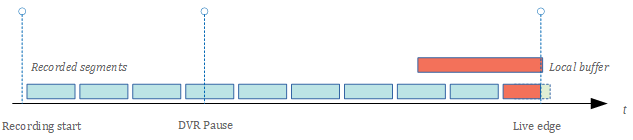
Local Buffer Size and Reference Time Match Mode
The DVR mode allows you to configure two important settings during initialization:
DvrLocalBufferSize
Defines the size of the in-memory buffer used for local recording, in kilobytes.
This should be calculated based on the expected stream bitrate and the desired duration of locally stored content.
DvrRefTimeMatchMode
Controls how the player synchronizes between the live source and the recorded stream:
-
RefTimeMatchMode_VideoPts– Synchronizes using video PTS (Presentation Timestamps).
Use this when your recorded stream preserves original PTS values. -
RefTimeMatchMode_KlvTimestamp– Synchronizes using KLV metadata timestamps.
Use this mode if video PTS values have been altered (e.g., by a transcoder), but KLV metadata is available and timestamped correctly.
⚠️ If both PTS and KLV timestamps are modified or missing, synchronization between live and recorded streams is not possible.
Example
m_KlvPlayer.DvrLocalBufferSize = 20000; // Buffer size in kBytes
m_KlvPlayer.DvrRefTimeMatchMode = DVR_RefTimeMatchMode.RefTimeMatchMode_VideoPts;

// Initialize the player
m_KlvPlayer.Init(m_Url);
The amount (duration) of the video that can be stored in the local buffer depends on the video bitrate.
Using DVR mode
To enable DVR mode, simply pass true to the CKlvPlayer constructor during player instantiation:
m_KlvPlayer = new CKlvPlayer(true); // Create Player instance.
Note: If you do not require DVR functionality (e.g., time-shifted playback, step forward/backward, or seek), it's recommended to pass false instead. This avoids the performance overhead associated with constant in-memory recording.
Next, proceed with the standard player initialization steps, just as you would in Stream Playback mode.
You can also configure optional DVR-specific parameters as needed:
// Optional DVR settings
m_KlvPlayer.DvrRefTimeMatchMode = DVR_RefTimeMatchMode.RefTimeMatchMode_VideoPts;
m_KlvPlayer.DvrLocalBufferSize = 20000; // Buffer size in kBytes

// Initialize the player
m_KlvPlayer.Init(m_Url);
Starting the Player in DVR Mode
Start the player as usual:
m_KlvPlayer.Start();
Once started, the SDK engine will begin recording the stream into the local in-memory buffer. The buffer size is defined by the DvrLocalBufferSize property.
When playback is paused, all trick mode operations (such as step forward, step backward, and seek) will be executed using this local buffer - as long as the requested data remains available in memory.
When the decoder requests data that is no longer available in the local buffer, the player will automatically and seamlessly fetch the required segments from the external recording URL (e.g., HLS manifest) that was previously added.
Pausing the player will freeze the currently displayed video, but the internal recorder will continue its operation. So, calling the \b Start method will resume the playback from the current position.
To seek the specific position, use \b SetPosition method.
m_KlvPlayer.SetPosition(pos);
To go to the live edge, call \b GoToLive method.
m_KlvPlayer.GoToLive();
For GUI presentation (for example to properly show the slider), you may need to know an available data range. \b GetAvailableRange method will do the job.
double posStart, posEnd;
m_KlvPlayer.GetAvailableRange(out posStart, out posEnd)