StanagOnDemand VMS client
STANAG Player SDK can serve as a client for the STANAG On Demand Server VMS.
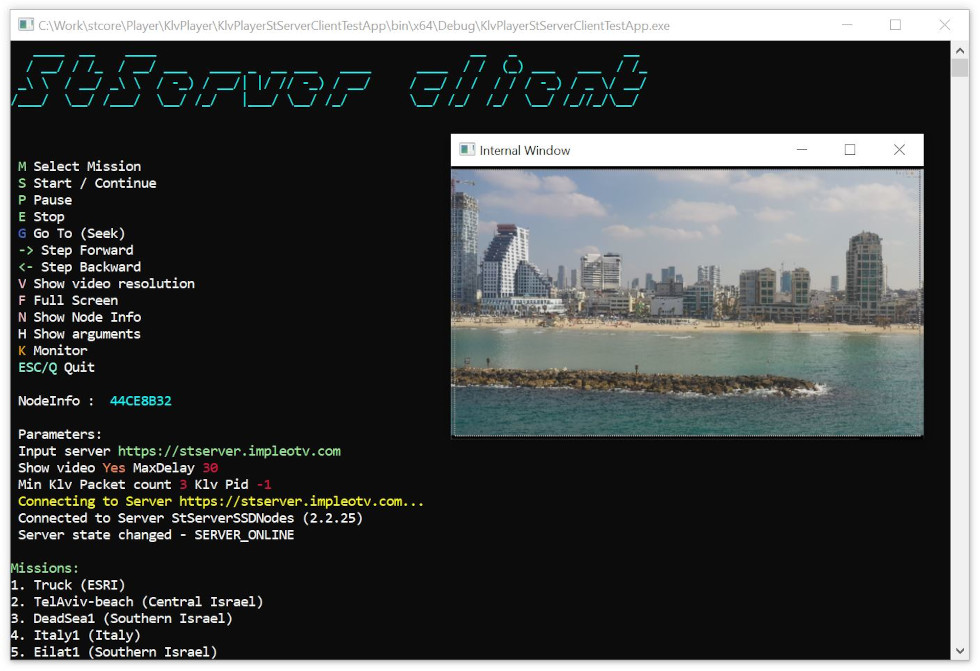
By default, the demo application is located at:
C:\Program Files\ImpleoTV\StanagPlayerSdkNet\Samples\KlvPlayerStServerClientTestApp
To build the demo:
Open the KlvPlayerStServerClientTestAppPr solution or project file.
Ensure all NuGet packages are restored.
Build it as a 64-bit application (Debug or Release).
Sample Code
The code is very similar to the basic file/stream console application. The STANAG OnDemand server VMS provides a REST API interface that clients can use to obtain a video URL. This URL should then be passed to the player.
You can use any method to access the server. The demo application uses a helper library called StServerUtils to handle basic tasks.
To use it:
Add a reference to the StServerUtils library.
Ensure that the RestSharp and SocketIOClient NuGet packages are installed.
Creating Player Instance
First, make sure you have all prerequisites in place.
Create the player instance:
// Create Player instance
CKlvPlayer m_KlvPlayer = new CKlvPlayer();
Configuring events.
// Setup events
m_KlvPlayer.PlayerEvent += new NotifyPlayerEvent(OnPlayerEvent);                   //  Player general events notification
m_KlvPlayer.ErrorEvent += new NotifyError(OnErrorEvent);                           //  Player error events
m_KlvPlayer.PidDetectionEvent += new NotifyPidDetection(OnPidDetectionEvent);      //  PID detection events (video / KLV / audio / data)
m_KlvPlayer.SyncFrameEvent += new NotifySyncFrame(OnSyncFrameEvent);               //  Synchronized Video frames / Klv / Private data. For more info on Video / Data sync see \ref pageSync
Create StServerUtils instance and wire events:
StServerUtils m_StServer = new StServerUtils(m_ServerUrl);
m_StServer.InfoReceived += StServer_InfoReceived;
m_StServer.StateChanged += StServer_StateChanged;
StServer_StateChanged event will report the state. When the server is online, you can query it for a list of available missions. Once you have a mission name, get a video url using m_StServer.BuildSensorUrl method.
m_StServer.BuildSensorUrl(m_SelectedMission).ContinueWith(u =>
{
    if(u.Status == TaskStatus.RanToCompletion)
    {
        m_Url = u.Result;
    }
});
Initialize the player:
// Initialize the player
m_KlvPlayer.Init(m_Url);
Optional parameters:
m_KlvPlayer.RenderVideo - true / false                            // Set to true if you want to render the video, false if you don't need it (when you only need metadata or decoder frames)
m_KlvPlayer.RenderAudio - true / false                            // Set to true if you need audio processing.
m_KlvPlayer.VideoCaptureMode.uncompressedVideo -
                             UncompressedVideoMode_None
                             UncompressedVideoMode_Rgb
                             UncompressedVideoMode_Yuv
                             UncompressedVideoMode_Grayscale
m_KlvPlayer.VideoCaptureMode.fCompressedVideo - true / false      // set to true if you don't need an uncompressed frame, but still want to get video timing info.
m_KlvPlayer.Hwnd                                                  // Window handle to render video to. If set to 0, the window will be created internally.
m_KlvPlayer.MaxSyncDelay - buffer size in ms                      // Allowed Sync time for video / data synchronization
m_KlvPlayer.CalculatePacketRate - true / false                    // Enable / disable Calculation of average rate for received packets
Starting the Player
Now, all you need is to start playback.
// Start Playback
m_KlvPlayer.Start();
The Video will be rendered in the Window provided during the initialization phase and OnKlvDataEvent method will be called on Klv data arrival.
Playback Events
During the playback, the relevant events (if set) will be fired.