WebSockets Interface
StPlayer extends its automation capabilities with a built-in WebSockets server that provides a communication channel between the player and external systems. By connecting to this server, custom applications can receive real-time event notifications and use them to automate playback-related workflows.
Whether you are synchronizing media with other devices, integrating with automation systems, or building custom workflows, this interface helps you connect StPlayer to existing applications and environments.
StPlayer’s WebSockets server uses a standard interface, making it easy to connect from desktop or browser-based applications. To establish a persistent connection, clients specify the server URL, which includes the address, port, and service path.
Configuring the WebSockets Interface
Use the corresponding checkbox to enable or disable the WebSocket interface. To edit the service URL, clear the checkbox first.
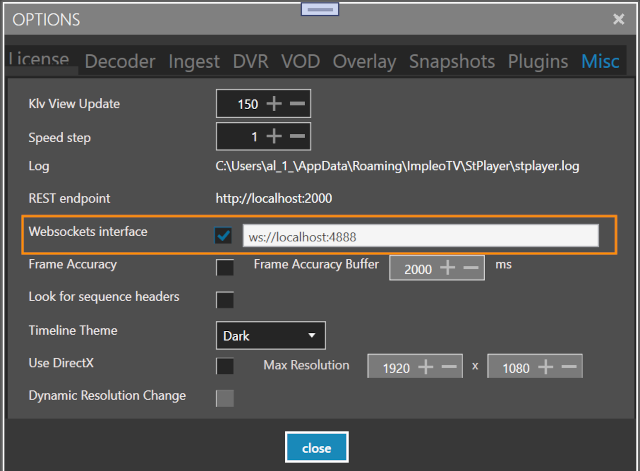
Service Endpoints
screenCoord
The screenCoord endpoint lets the client receive mouse event information in JSON format. Two event types are supported:
- Mouse move
- Mouse down
Example:
{
  "event": "MouseMove",
  "screenCoord": {
    "X": 198.0,
    "Y": 484.0,
    "Width": 1254.0,
    "Height": 707.33333333333337
  },
  "geoCoord": {
    "Lat": -31.077997416828886,
    "Lon": 150.4629037274957,
    "Alt": "NaN"
  },
  "klvs": {
    "2": 1283400393674348,
    "65": 3,
    "3": "test",
    "10": "15HD BN-2T",
    "5": 230.91417,
    "6": 7.3512986,
    "7": -0.2182073,
    "11": "EOW",
    "12": "Geodetic WGS84",
    "13": -31.0436365758,
    "14": 150.4924047228,
    "15": 2651.85,
    "16": 40.5127,
    "17": 22.7887,
    "18": 0.1406249498,
    "19": -24.0828857124,
    "20": 359.5324098317,
    "21": 5836.0305,
    "22": 4126.5,
    "23": -31.073764572399998,
    "24": 150.4489174813,
    "25": 272.71,
    "26": -0.0161184,
    "27": 0.0002426,
    "28": 0.0034814,
    "29": -0.0182836,
    "30": 0.0100757,
    "31": 0.0041131,
    "32": 0.0014191,
    "33": 0.0122959,
    "40": -31.073764572399998,
    "41": 150.4489174813,
    "42": 272.71,
    "56": 47,
    "57": 5329.0336,
    "1": 54172
  },
  "time": "2010-09-02T04:06:33.674348Z",
  "pcktNumber": 16
}
Note: To retrieve KLV data, the Recasting option must be enabled in your license. If geo coordinates cannot be calculated, the
geoCoordentry is omitted.
Mouse Event Report Format
The WebSocket message includes the following fields:
-
event — The event type: either
MouseMoveorMouseDown.By default, only
MouseDownevents are reported.
To receive both events, set theWebSocketReportBothMouseDownAndMovevalue totruein the
C:\Program Files\ImpleoTV\StPlayer\Bin\x64\StPlayerApp.exe.configfile. -
screenCoord — Contains the video window's width and height, along with the X and Y position within that window.
The current video resolution can be obtained using the REST API.
Note: This information is available only when the Overlay Tools option is enabled. -
geoCoord — The geographic coordinates of the selected point.
These are calculated using metadata (excluding DTM). If the required metadata is missing, geo coordinates will not be available. Important: Accuracy depends on the metadata quality; exact positioning is not guaranteed.
-
time — Timestamp, derived from KLV tag 2.
-
pcktNumber — The KLV packet number corresponding to this event.
lastPacketGeoJson
The lastPacketGeoJson endpoint lets the client receive information about the most recently updated KLV packet in GeoJSON format. You can configure the maximum update rate for GeoJSON packets in StPlayerApp.exe.config by setting MaxLastPacketGeoJsonUpdateRate in milliseconds.
Note: Metadata recasting information is available only with the Metadata Recaster option.
Example:
{
  "type": "FeatureCollection",
  "features": [
    {
      "type": "Feature",
      "geometry": {
        "type": "Point",
        "coordinates": [
          150.4909894385,
          -31.0454143356
        ]
      },
      "properties": {
        "description": " Mission Id: test",
        "title": " Platform: 15HD BN-2T Mission Id: test",
        "name": "Sensor",
        "marker-symbol": "camera"
      }
    },
    {
      "type": "Feature",
      "geometry": {
        "type": "LineString",
        "coordinates": [
          [
            150.4909894385,
            -31.0454143356
          ],
          [
            150.4476808153,
            -31.0759667079
          ]
        ]
      },
      "properties": {
        "name": "CameraToTargetLine",
        "stroke-width": 1,
        "stroke-opacity": 1,
        "stroke": "#ff0000"
      }
    },
    {
      "type": "Feature",
      "geometry": {
        "type": "Polygon",
        "coordinates": [
          [
            [
              150.43868321530002,
              -31.1221084079
            ],
            [
              150.3933495153,
              -31.074462907900003
            ],
            [
              150.4570836153,
              -31.055513207900002
            ],
            [
              150.4728288153,
              -31.0720550079
            ],
            [
              150.43868321530002,
              -31.1221084079
            ]
          ]
        ]
      },
      "properties": {
        "name": "Footprint",
        "stroke": "#0000ff",
        "stroke-width": 2,
        "fill-opacity": 0
      }
    },
    {
      "type": "Feature",
      "geometry": {
        "type": "LineString",
        "coordinates": [
          [
            150.4909894385,
            -31.0454143356
          ],
          [
            150.4476808153,
            -31.0759667079
          ]
        ]
      },
      "properties": {
        "name": "CameraToFrameCenter",
        "stroke-width": 1,
        "stroke-opacity": 1,
        "stroke": "#0000ff"
      }
    }
  ]
}
Rendered GeoJSON output:
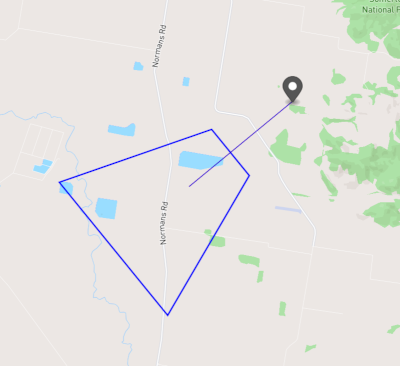
If the geo coordinates cannot be calculated, the GeoJSON payload will be an empty JSON object.
Connecting to the Services
The following JavaScript example shows how to connect to the service:
import WebSocket from  'ws';

// Create a new WebSocket connection to the screenCoord interface
const socket = new WebSocket('ws://localhost:4888/screenCoord');

// Or create a new WebSocket connection to the lastPacketGeoJson interface
//const socket = new WebSocket('ws://localhost:4888/lastPacketGeoJson');


// Event handler for successful connection
socket.on('open', () => {
  console.log('Connected to the server');
});

// Event handler for incoming messages
socket.on('message', (message) => {

    // Parse the message as JSON
    try {
      const json = JSON.parse(message);
      console.log('Parsed JSON:', JSON.stringify(json));
    } catch (error) {
      console.error('Error parsing JSON:', error);
    }
});

// Event handler for connection errors
socket.on('error', (error) => {
  console.error('WebSocket error:', error);
});

// Event handler for connection close
socket.on('close', (event) => {
  console.log('Connection closed:');
});

// Send a message to the server
function sendMessage(message) {
  socket.send(message);
}
The demo project source is located in the /WebSocketClientDemo directory.