🗺️ Map View
The Map View improves situational awareness by displaying:
- 🛩️ Platform position
- 🎯 Target position and frame center
- 🟩 Image footprint
- 📝 GeoJSON annotations
- 📍 VMTI targets
To open the Map Window, click the Map button.
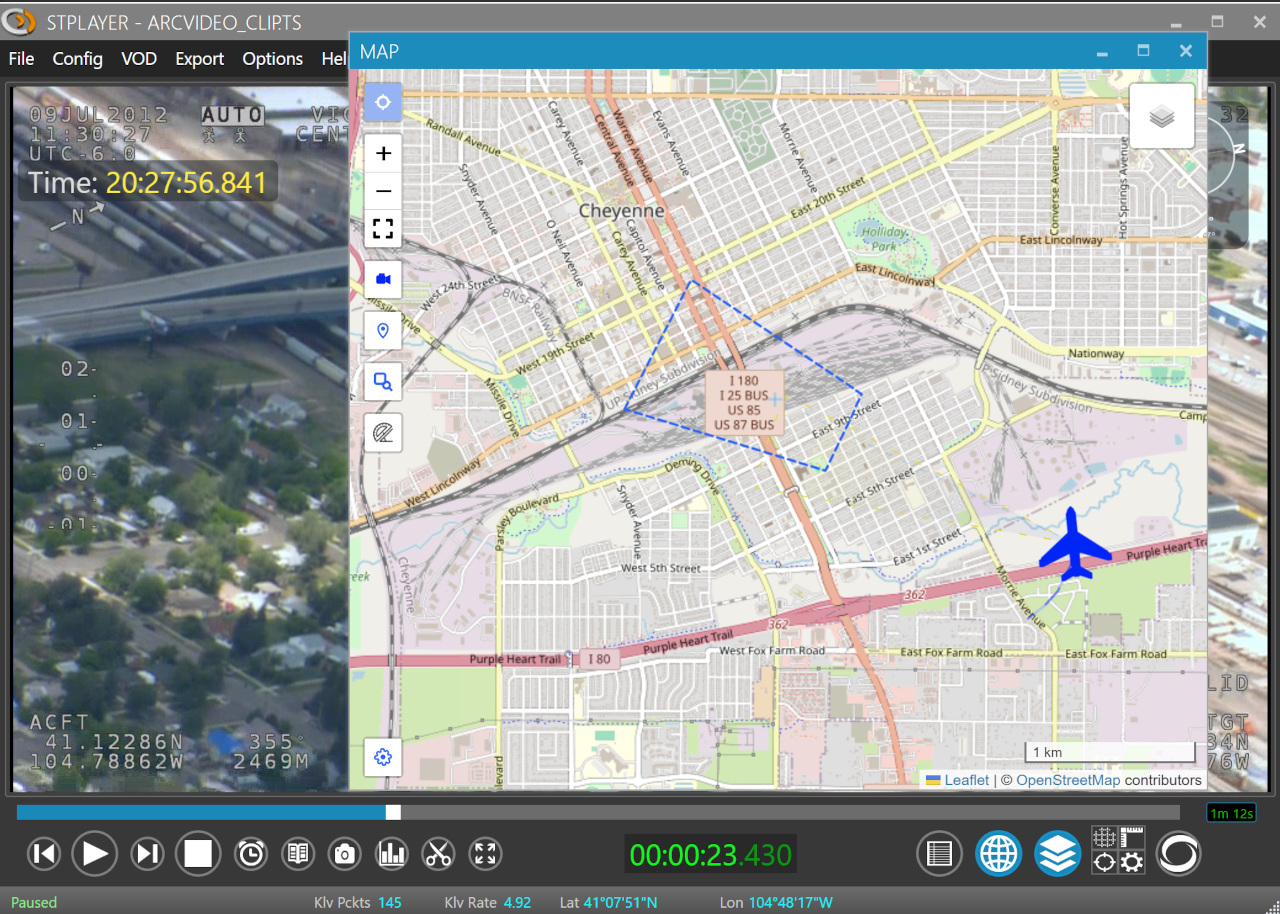
ℹ️ To use the base maps from the Map Layer list, the computer must have internet access, unless you configure offline maps or a local tile server.
📏 Filmed Area
After ingest is complete, StPlayer automatically calculates the full area covered by the video and displays it on the map.
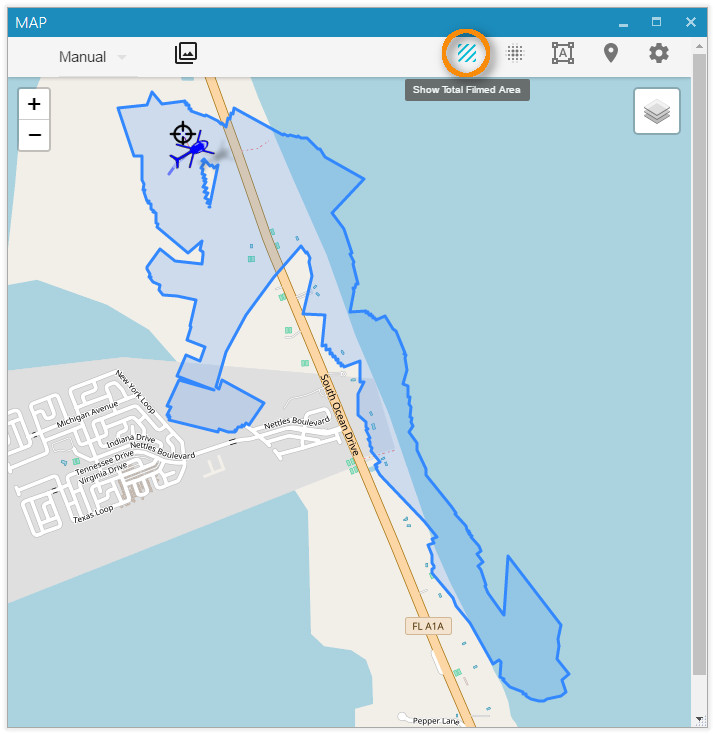
ℹ️ Area calculation requires the relevant metadata, such as corner points (Tags 26–33) or full coordinates (Tags 82–89).
🚩 Platform Path
When platform position metadata is available, StPlayer can draw the platform path on the map. This makes it easier to understand the aircraft route, direction of travel, and the relationship between the flight path and the observed area.
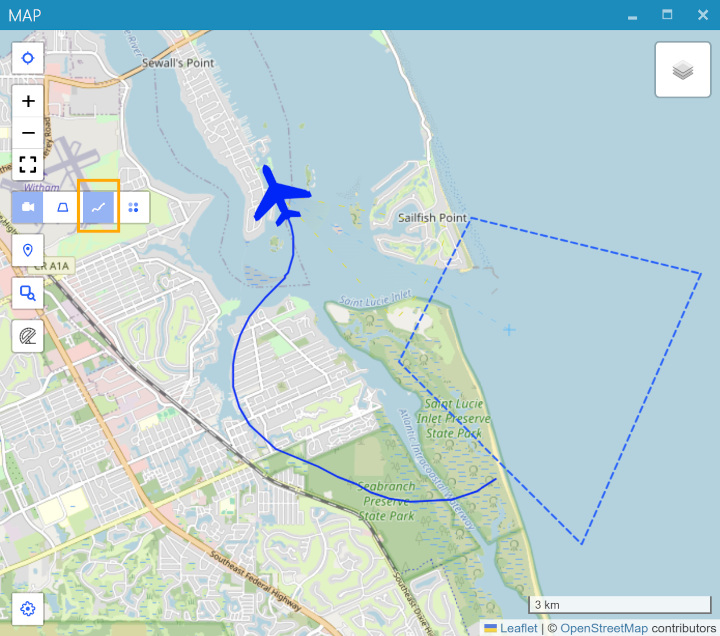
ℹ️ This feature requires platform location metadata.
🔥 Heat Map
In addition to the filmed area, StPlayer can highlight the parts of the scene that receive the most camera attention by rendering a heat map based on frame center positions.
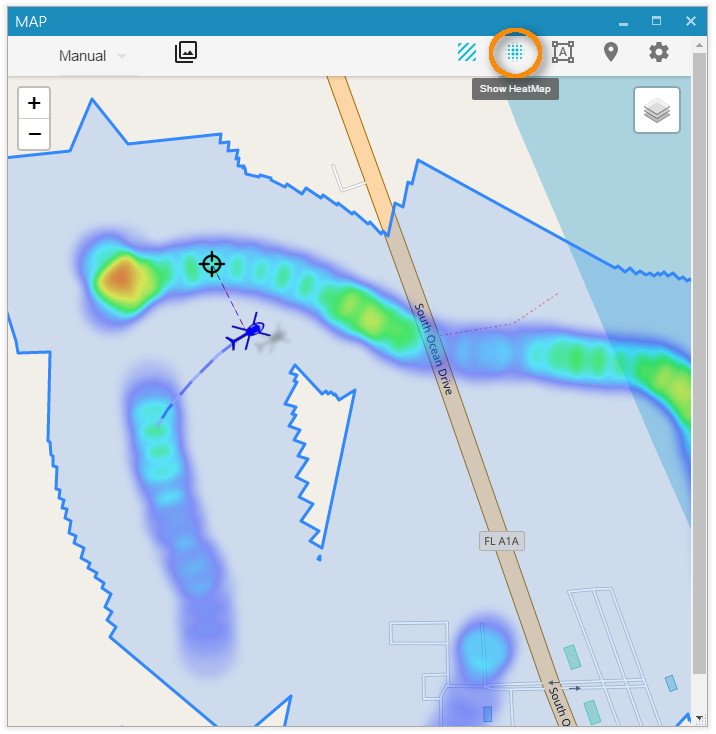
ℹ️ This feature requires metadata with frame center information (Tags 23–24).
🎬 Video Coverage
The Video Coverage Query helps you find relevant video segments by selecting an area on the map.
For example, if the footage follows a river to the ocean and then returns, you can define an Area of Interest and use the chart to locate the exact part of the clip where that area is visible.
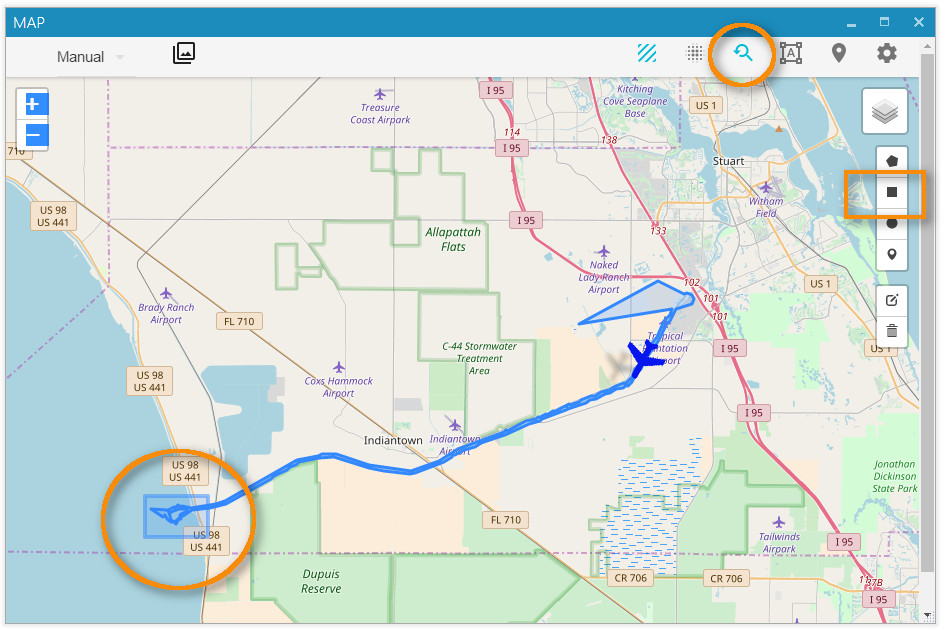
The resulting chart shows when the selected area appears in the video:
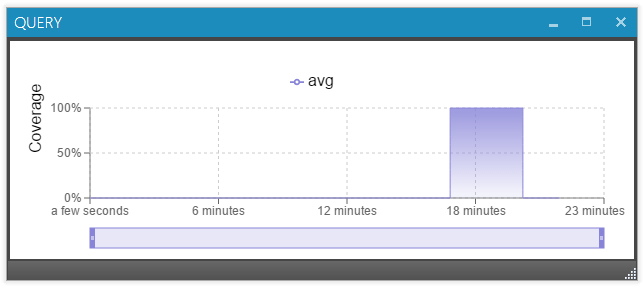
Click the chart to jump directly to the corresponding point in the video.
🗺️ Offline Maps
StPlayer can use pre-downloaded map tiles for selected regions when the computer does not have internet access.
📂 Local Map Files
StPlayer can optionally include a basic low-resolution world map for offline use.
The default tile location is:
C:\Program Files\ImpleoTV\StPlayer\Bin\x64\resources\map\map-tiles
You can add or replace these tiles with pre-downloaded tiles for your area of interest.
🧱 Creating Offline Maps
Many free and commercial tools can generate offline map tiles.
One of the easiest free options is Mobile Atlas Creator (MOBAC):
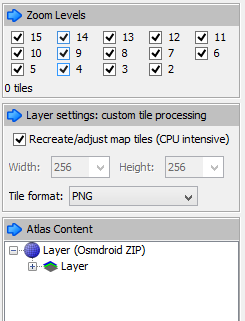
Steps:
- Select the region and the required zoom levels.
- Save the atlas as OSMDroid ZIP.
- The output will use a folder structure similar to:
{atlas_name}/{z}/{x}/{y}.png
-
Extract the ZIP and either:
-
Copy the tiles into the StPlayer tile directory:
C:\Program Files\ImpleoTV\StPlayer\Bin\x64\resources\map\map-tiles
- Serve them using a local or intranet HTTP server.
You can also create tiles from GeoTIFF files using tools such as:
These tools convert raster map data into a tile format compatible with StPlayer.