🗺️ Annotations
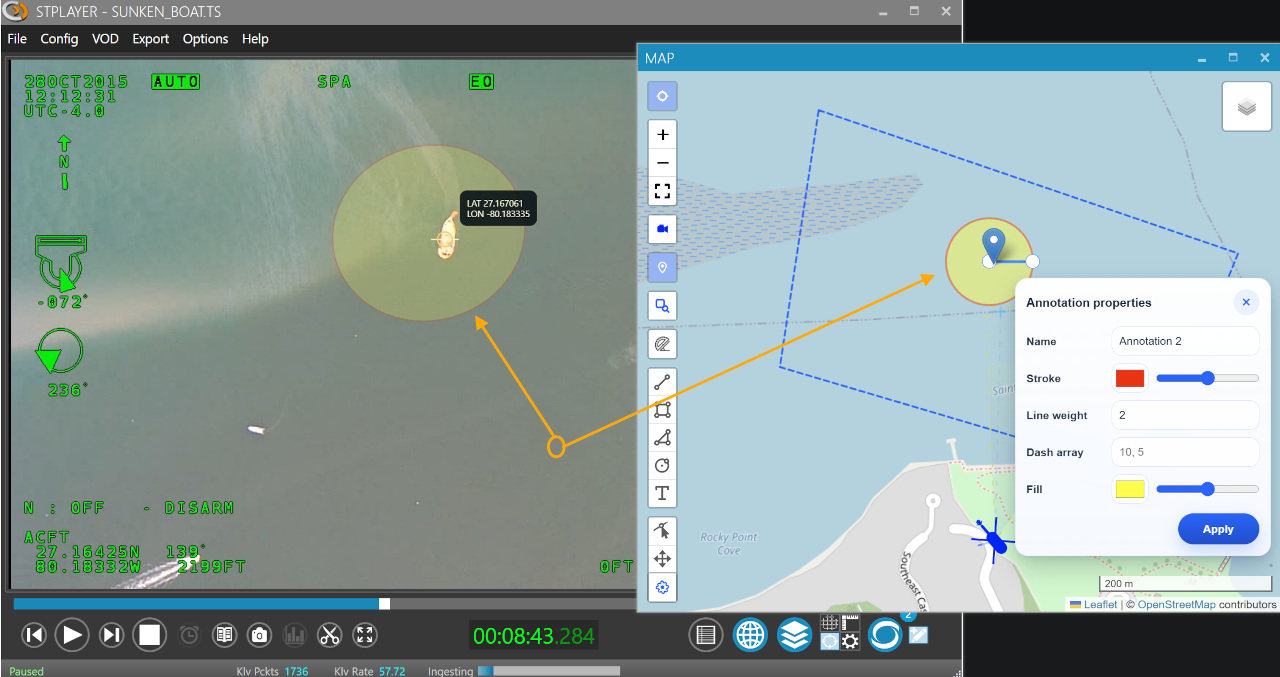
StPlayer stores annotations as GeoJSON and can present the same annotation in two synchronized views:
- Over the video through the overlay engine
- On the map through the map control
This is a synchronized workflow, not two separate drawings. The application keeps one annotation record and uses that same GeoJSON for both the video overlay and the map.
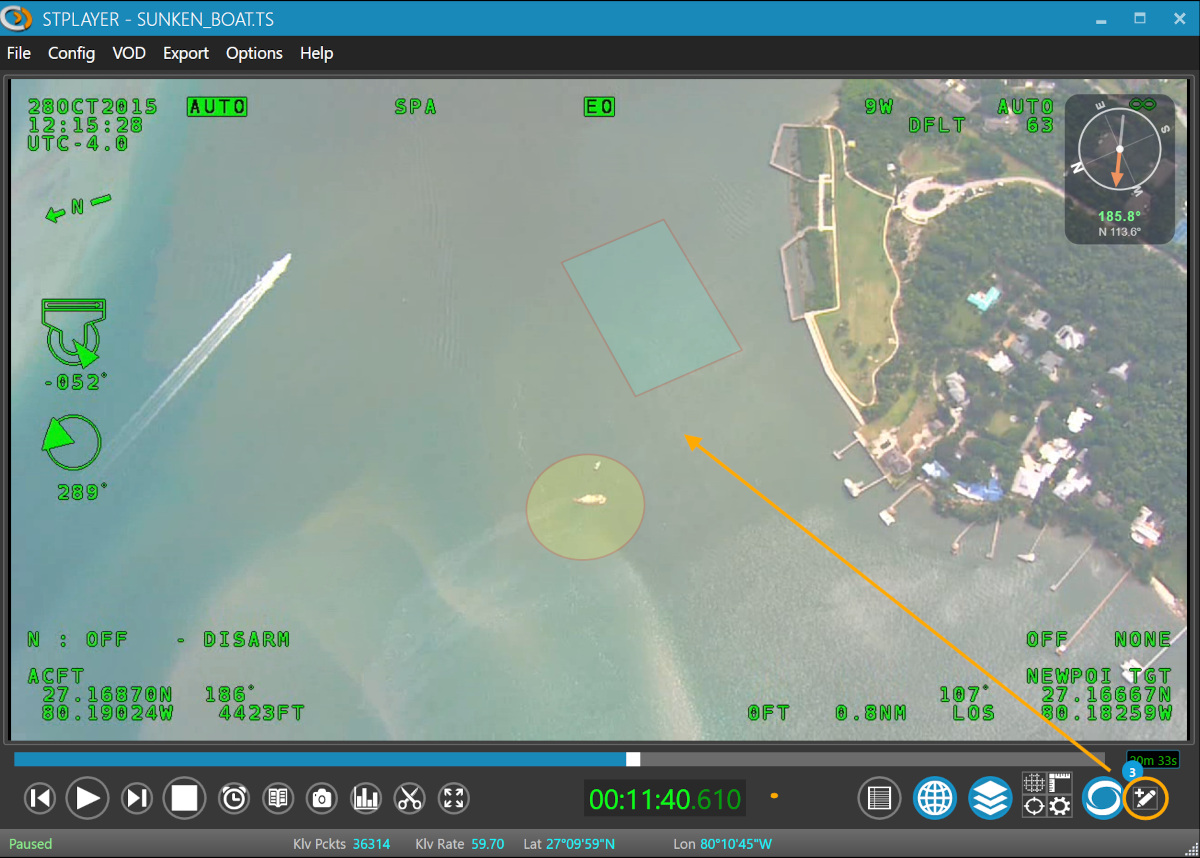
🔄 Synchronized Video And Map Annotations
When an annotation is enabled, StPlayer sends the same GeoJSON payload to both renderers:
- The video overlay draws the annotation over the current frame
- The map draws the annotation in geographic coordinates
How the video synchronization works
The video implementation uses video overlay to project GeoJSON geometry onto the current frame.
- The overlay resolves a ground projection from the current telemetry packet
- It uses the current frame center when available
- It prefers full frame corner coordinates and falls back to corner offsets when needed
- It redraws the annotation overlay as telemetry changes so the shape stays aligned with the video footprint
This means the annotation is anchored to world coordinates, not to fixed screen pixels. As the platform moves or the camera view changes, the overlay is reprojected to the correct place in the video.
How the map synchronization works
The map implementation uses map to render the same stored GeoJSON as an annotation overlay.
- Polygons, lines, and points are rendered directly from GeoJSON
- Style is taken from common properties such as
stroke,stroke-opacity,stroke-width,fill, andfill-opacity - If
properties.nameexists, the map can show it as the annotation label or popup text
Because both views use the same source data, the operator can see the annotation in geographic context on the map and in frame context on the video.
What this means in practice
- Draw or import an annotation once
- Keep it Visible to show it on both the video and the map
- Play, pause, or scrub the clip, and the overlay follows the current telemetry solution
- Open the map window to verify the same annotation against the geographic scene
If the current frame does not have enough valid geo metadata for projection, the map can still show the annotation even when the video overlay cannot place it accurately.
✏️ Annotation Editor
The Annotation Editor lets you draw annotations over the video stream.
When you draw on the video, StPlayer converts the shape into geographic geometry and stores it as GeoJSON. That stored GeoJSON is then reused by both the video overlay and the map.
Typical workflow:
- Pause or inspect the video at the desired frame
- Draw the annotation over the current video footprint
- Save the annotation
- Reopen it later on either the video overlay or the map
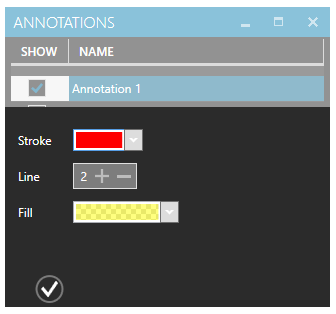
🎨 Annotation Style Editor
Customize the look and feel of your annotations using the Annotation Style Editor:
- Choose colors
- Set opacity
- Define visibility rules
These style settings are stored with the annotation properties and reused by both renderers, which keeps the video overlay and map presentation visually consistent.
🧩 Supported Annotation Data
The synchronized annotation flow is based on GeoJSON.
In the current implementation:
- The video overlay projects GeoJSON features into the frame using live telemetry
- The map overlay renders the stored GeoJSON directly
- Common style properties are preserved across both views
Depending on the feature type and properties, annotations can represent points, lines, polygons, and styled shapes.
⚠️ Requirements And Limits
For synchronized video/map annotations to work correctly:
- The stream must provide valid geo-referencing metadata for the current frame
- The video overlay needs a valid projection solution from the incoming telemetry
- The map can display the annotation even when the current frame cannot be projected precisely
If telemetry is incomplete, delayed, or invalid, the geographic annotation record still exists, but the video overlay may not align or may be temporarily unable to place the shape on the frame.
This is expected behavior, because the map renders stored world coordinates while the video overlay must solve a frame-specific projection in real time.