Creating a Recast Stream
This guide explains how to create a recast stream or add recast targets to an existing stream. The screenshots show a UDP input forwarded to a UDP receiver.
Before You Start
Confirm the license includes the Recast option, otherwise the recast controls are hidden or disabled. SRT inputs and outputs also require SRT.
Steps to Create a Recast Target
1. Configure the stream
Open Streams and click Add stream. To update an existing stream, stop it and open Edit stream.
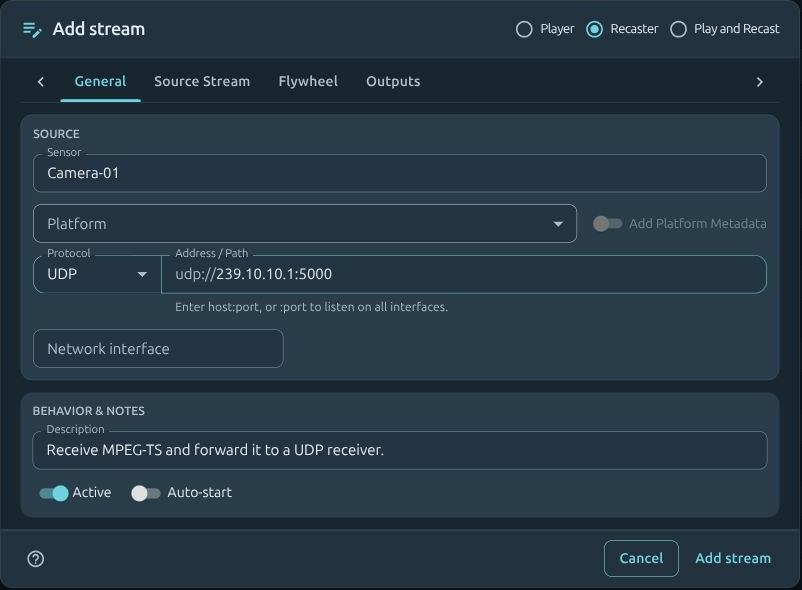
Select Recaster or Play and Recast in the mode selector at the top of the dialog. In General, enter the Sensor name, optionally assign a Platform, and configure Protocol and Address / Path. The example receives UDP from 239.10.10.1:5000.
Keep Active enabled to allow the stream to run. The example leaves Auto-start disabled so that it can be started manually after saving.
2. Configure the source stream
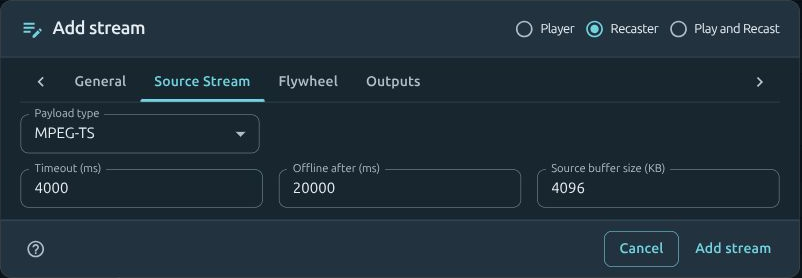
For a UDP input, open Source Stream and select Payload type:
- MPEG-TS for an MPEG transport stream, including STANAG 4609.
- Data for data packets forwarded without media detection.
Review Timeout (ms), Offline after (ms) and Source buffer size (KB). Additional tabs depend on the selected protocol and mode; see Stream configuration for other input settings.
3. Add an output target
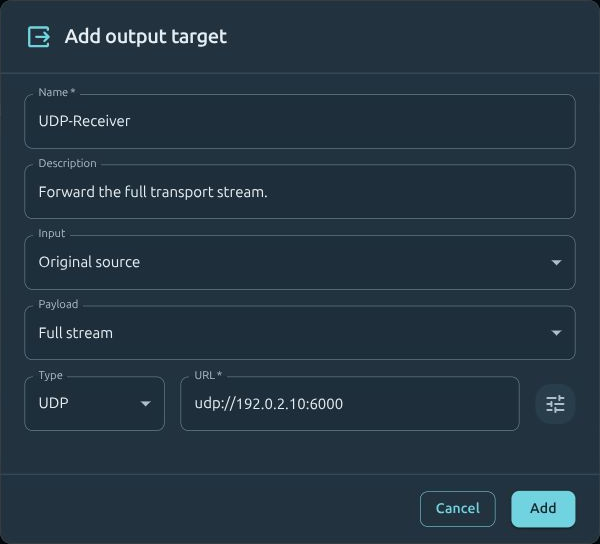
Open Outputs and click Add to open Add output target.
- Enter a target Name and optional Description.
- Choose Input. Select Original source to forward the source feed, or an available processor output when using a processor such as Flywheel.
- Choose Payload. The example uses Full stream.
- Choose Type and enter the destination URL, then configure any protocol-specific settings.
The example uses a UDP target named UDP-Receiver with the destination 192.0.2.10:6000. Replace this documentation address with your receiver's address and port.
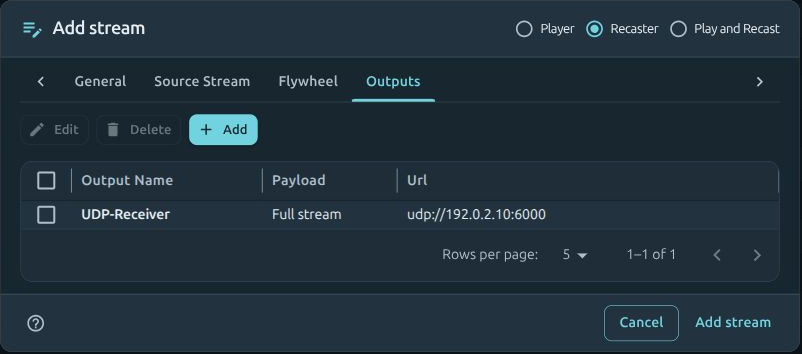
Click Add to place the target in the stream's Outputs table. Repeat for additional targets. Select a row to Edit or Delete that target.
4. Save and start
Click Add stream for a new stream, or save the changes to an existing stream. With Auto-start disabled, use Start on the Streams page when ready.
Saving starts the stream automatically only when both Active and Auto-start are enabled. Automatic startup after a server restart also requires the server-wide Start active streams on load setting.
On the Streams page, check the indicator for the target you just added. The UDP-Receiver example uses Original source, so its indicator is a circle. A target configured to use Flywheel has a diamond. Hover over either shape to confirm the input.
Optional: Play and Recast
If you also want local playback, select Play and Recast as the stream mode. WebRTC playback is a separate branch controlled by the mode; it is not an output target. Recast targets work independently from browser viewers.
RTSP and H.264 SEI targets
- RTSP sources can recast H.264 or H.265 video to SRT as MPEG-TS in Recast or Play and Recast mode. Open the Klv tab and enable Generate synthetic data to add custom MISB ST 0601 KLV. The controls and JSON editor are shared with Pattern streams. Choose the PID, ASYNC/SYNC transport, and every-frame or rate-based insertion. Use platform location copies the selected platform’s name, latitude, longitude, altitude, and heading into the editable template when geographic information exists. Audio is not forwarded on this path. SRT requires both the Recast and SRT license options.
- Choose RTSP Server to publish a live feed or independent file playback to external RTSP clients. See RTSP server for architecture, server settings, delivery formats, and authentication.
- Choose UDP, then Payload → H.264 SEI metadata, to send extracted metadata to a telemetry receiver. See H.264 SEI recasting for UUID filtering and output format.
Recasting to UDS (Unix Domain Socket)
UDS targets allow you to recast streams to a local Unix domain socket. This is ideal when you want to forward streams to other local applications on the same host with minimal latency and no network overhead.
UDS Target Configuration
- When adding an output target, select UDS as the target type.
- Enter the socket path in the URL field (examples below).
- Choose the Socket mode:
- Connection mode (default): SkyView creates a server socket and listens for client connections. External applications can connect to the socket to receive the stream.
- Datagram mode: SkyView uses a datagram socket for packetized delivery.
Multiple Clients
Unlike TCP/IP where a server typically handles multiple clients, UDS in connection mode allows multiple clients to connect to the same server socket simultaneously. This means:
- Multiple local applications can subscribe to the same recast stream.
- Each client receives the data independently.
- Failure or disconnection of one client does not affect others.
Socket Path Naming Convention
Use the following recommended patterns for UDS socket paths:
- Recast (server) outputs:
/tmp/<platform>.<stream>.<target>.sock - Example:
/tmp/skyview.camera1.recast1.sock
Path Constraints
UDS paths must be valid absolute Unix paths with the following restrictions:
- Must start with
/(absolute path). - Maximum length: 107 characters.
- No whitespace, NULL bytes, or shell-special characters (spaces,
;,&,|,$,<,>, backticks, quotes,*,?,!, parentheses, or brackets).
The UI accepts both plain absolute paths and URLs with the uds:// scheme:
/tmp/skyview.camera1.recast1.sockuds:///tmp/skyview.camera1.recast1.sockuds:/tmp/skyview.camera1.recast1.sock
Notes
- You can add multiple recast targets per stream.
- If a target fails, the stream continues to run for other outputs.